How to Add a FACEIT Widget to OBS & Streamlabs
Create a free live ELO and stats overlay for OBS Studio or Streamlabs Desktop. Add it as a Browser source with no plugin or player login.
Set up the widget
Follow these steps to add a FACEIT widget to OBS Studio or Streamlabs Desktop.
Step 1: Enter the FACEIT nickname
Open the builder and enter the exact nickname from the FACEIT profile.
Step 2: Choose a layout and stats
Pick a preset and keep only the stats you want viewers to see.
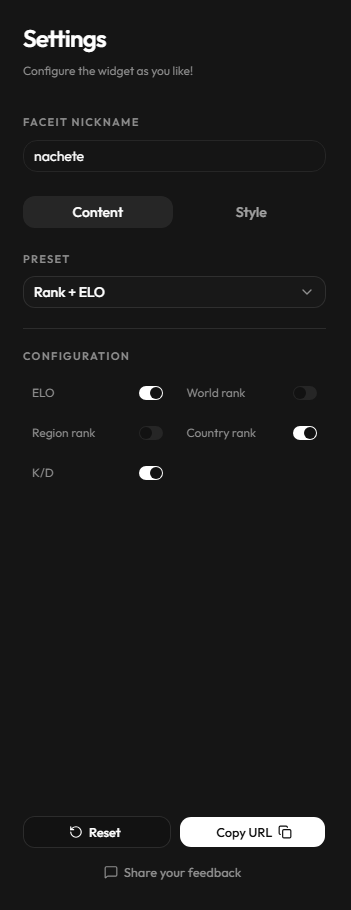
Step 3: Set a transparent background
Select Transparent to keep the game visible behind the stats. The border and shadow stay disabled, so you do not need custom CSS in OBS or Streamlabs.
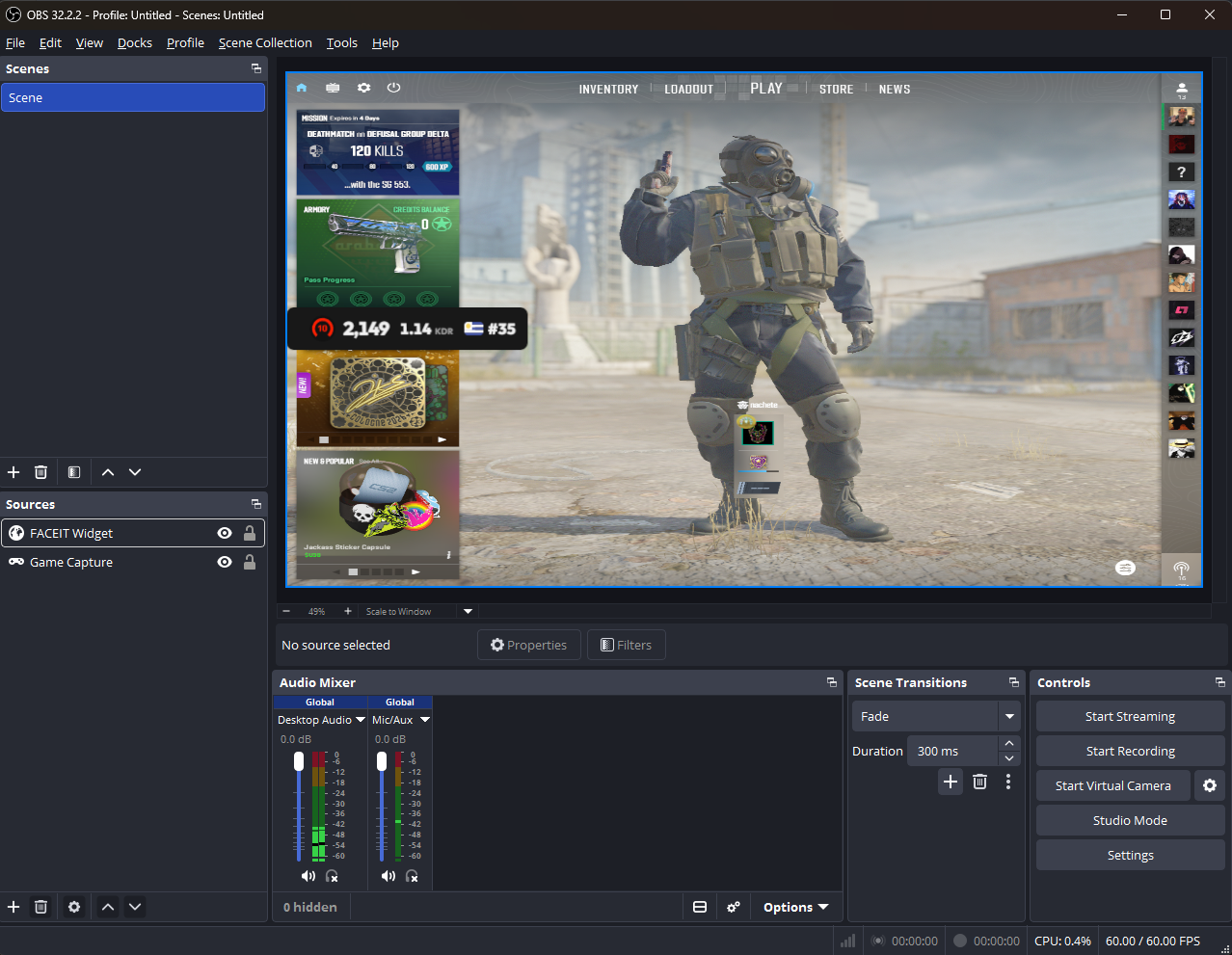
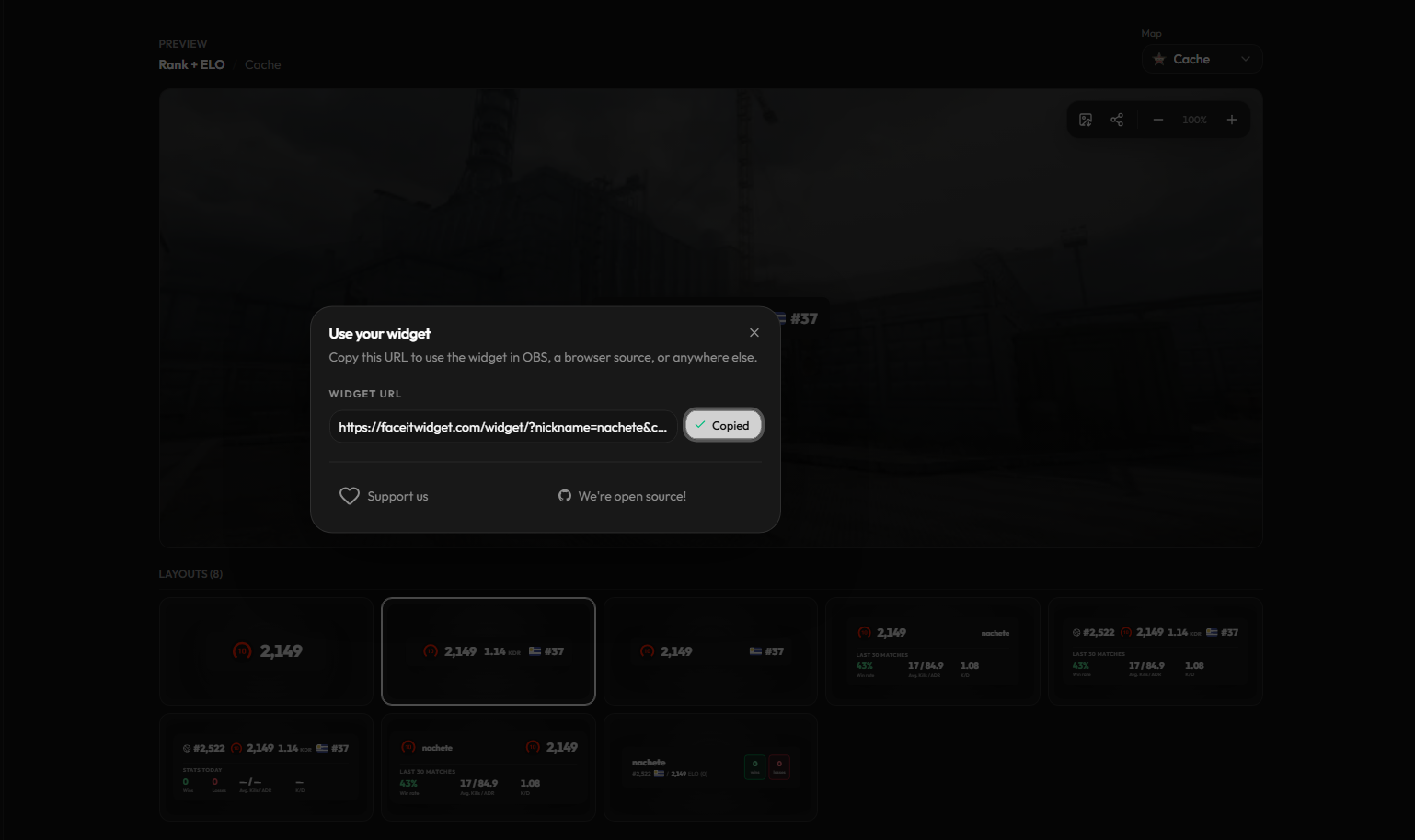
Step 4: Copy the widget URL
When the preview is ready, select Copy URL.
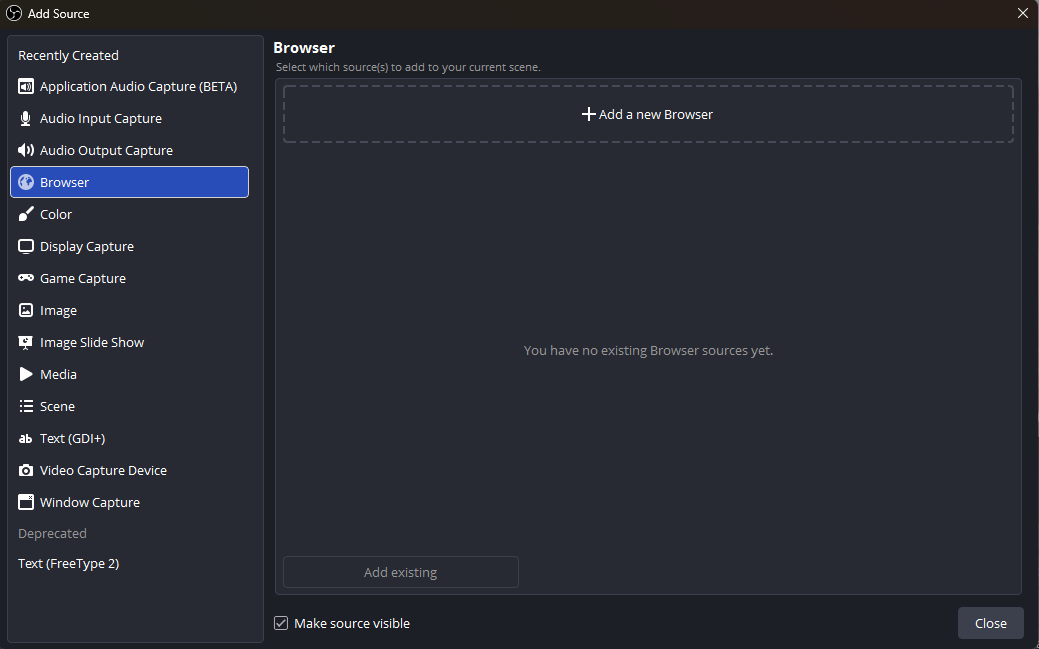
Step 5: Add a Browser source in OBS or Streamlabs
In OBS Studio, add a Browser source to the scene. In Streamlabs Desktop, open the Sources panel in the editor and click +. Choose Browser Source, name it, and click Add Source.
Step 6: Paste the URL and set the source size
Paste the copied URL and start with a width of 800 and a height of 300. Adjust the size or crop empty space if needed.
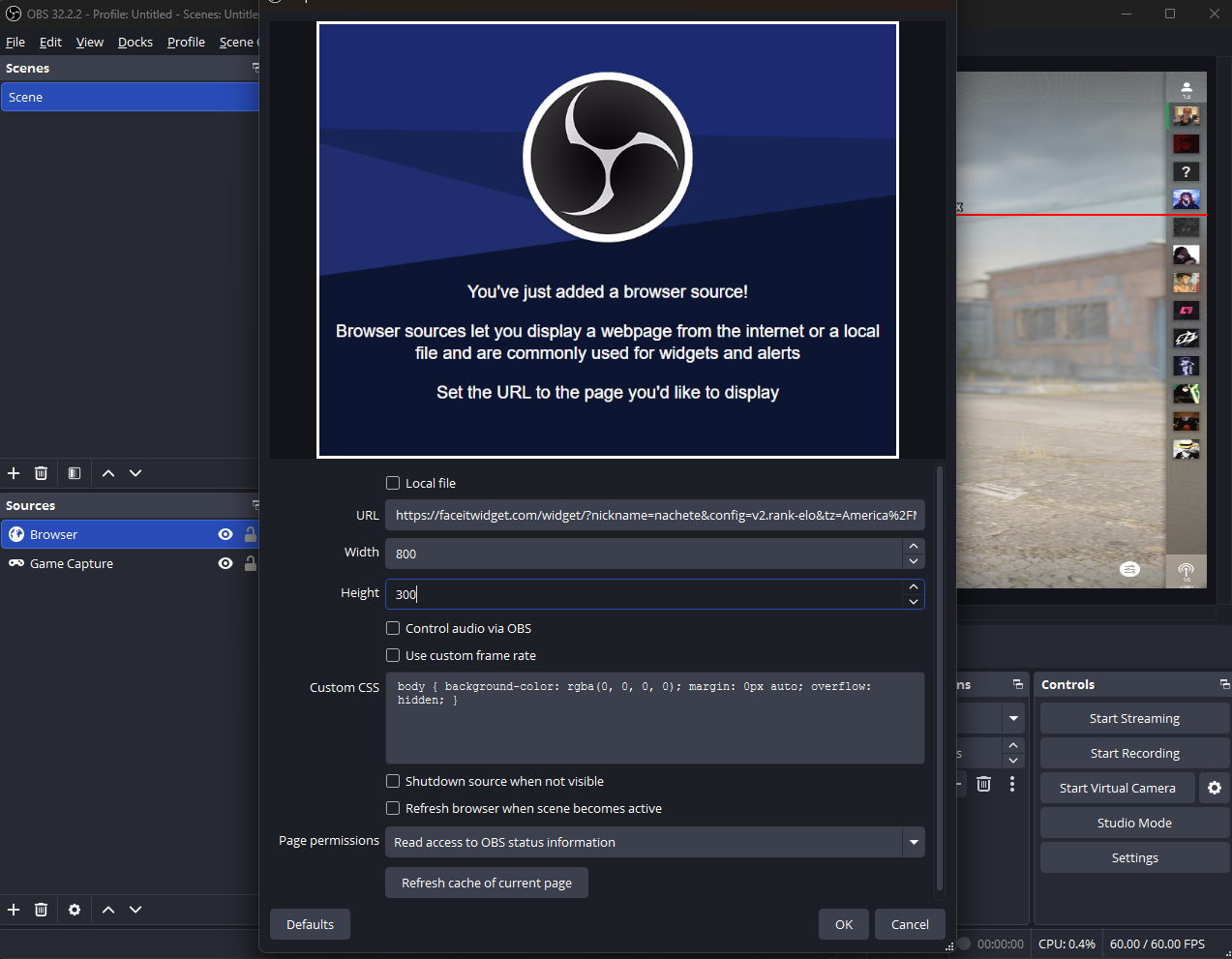
Step 7: Position the overlay
Move the source into place and scale it without stretching. Keep the Browser source active if you want its values to update outside the current scene.
Read the live stats guide to see what appears after a match. Prefer Streamlabs Desktop? Follow the Streamlabs setup guide.
Troubleshoot the widget
The widget shows the wrong player
Check that the nickname matches the FACEIT profile exactly.
The overlay still shows an old URL
Refresh the Browser source after replacing its URL.
The latest match stats are missing
Wait for FACEIT to publish the finished match, then refresh the Browser source.